Organic search traffic includes both people who already know your brand and people discovering your website for the first time. Understanding the difference can provide much deeper insights into SEO performance.
Brand keywords usually reflect existing awareness and intent, while non-brand keywords show opportunities to reach new audiences. Looking at both helps you see whether your SEO is strengthening brand visibility or expanding your reach.
What are Brand Keywords?
Brand keywords are keywords that relate to your brand and your brand only.
These are different from non-brand keywords which are keywords that do not relate to your brand. It can be any search term. If a shoes shop sells Nike shoes for instance, it means “Nike” and every similar keyword combination is not a brand keyword, since the name of the shop is not included.
Why Are Brand Keywords Important?
Brand keywords are search terms that relate to your brand. They often account for a significant share of organic traffic because users searching for these terms are already familiar with your business and are looking for specific information, products, or services.
Monitoring brand keyword performance is important because it helps you:
- Protect and strengthen brand visibility by ensuring your website remains the most prominent result for searches related to your brand.
- Maximize conversions since brand searches often come from users with higher intent and are more likely to lead to purchases, signups, or other valuable actions.
- Track brand demand over time and understand how awareness of your company or products is changing.
- Identify opportunities and risks if important brand terms lose visibility or fail to meet user expectations.
Analyzing brand keywords alongside non-brand keywords provides even deeper insights into your SEO performance. Some key questions to explore include:
- How much of your organic traffic comes from brand versus non-brand searches? A high share of brand traffic may reflect strong brand recognition, while non-brand traffic shows your ability to attract new audiences through search.
- Do brand and non-brand visitors behave differently? Users searching for your brand often arrive with clearer intent than first-time visitors. Comparing engagement and conversion metrics can reveal how each audience contributes to business results.
- Are non-brand keywords generating meaningful outcomes? Non-brand searches often represent growth opportunities, but understanding which keywords drive engagement and conversions helps you focus on the most valuable topics.
By analyzing both brand and non-brand performance, you can better understand whether your SEO efforts are reinforcing existing demand, expanding your reach to new audiences, or doing both.
How Can I Identify Brand Keywords?
Keyword Hero does this for you automatically.
Using clever natural language processing and a little bit of magic, Keyword Hero sorts through all your organic keywords and detects the ones that are related to your brand.
It’s a massive time saver.
Adding and Removing Brand Keywords Manually
Not everyone is perfect, not even Keyword Hero. If Keyword Hero fails to detect one of your brand keywords, then you can add it manually.
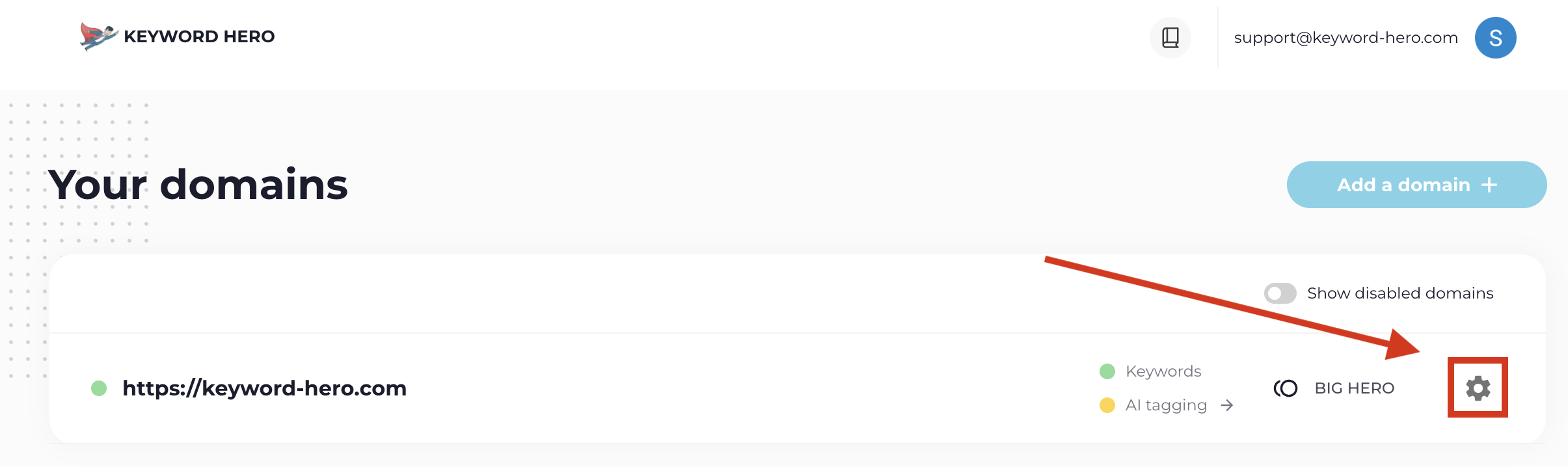
To do this, head over to your Keyword Hero account and log in. Click on the settings icon:
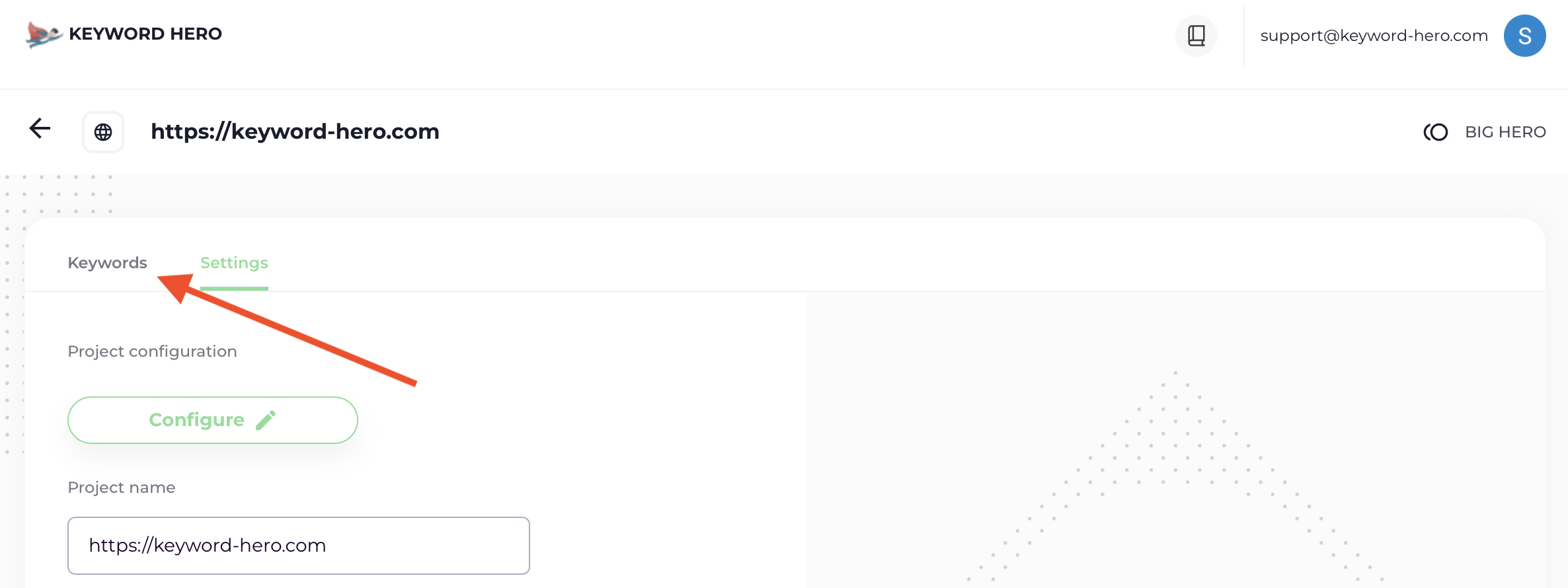
And click “Keywords”:
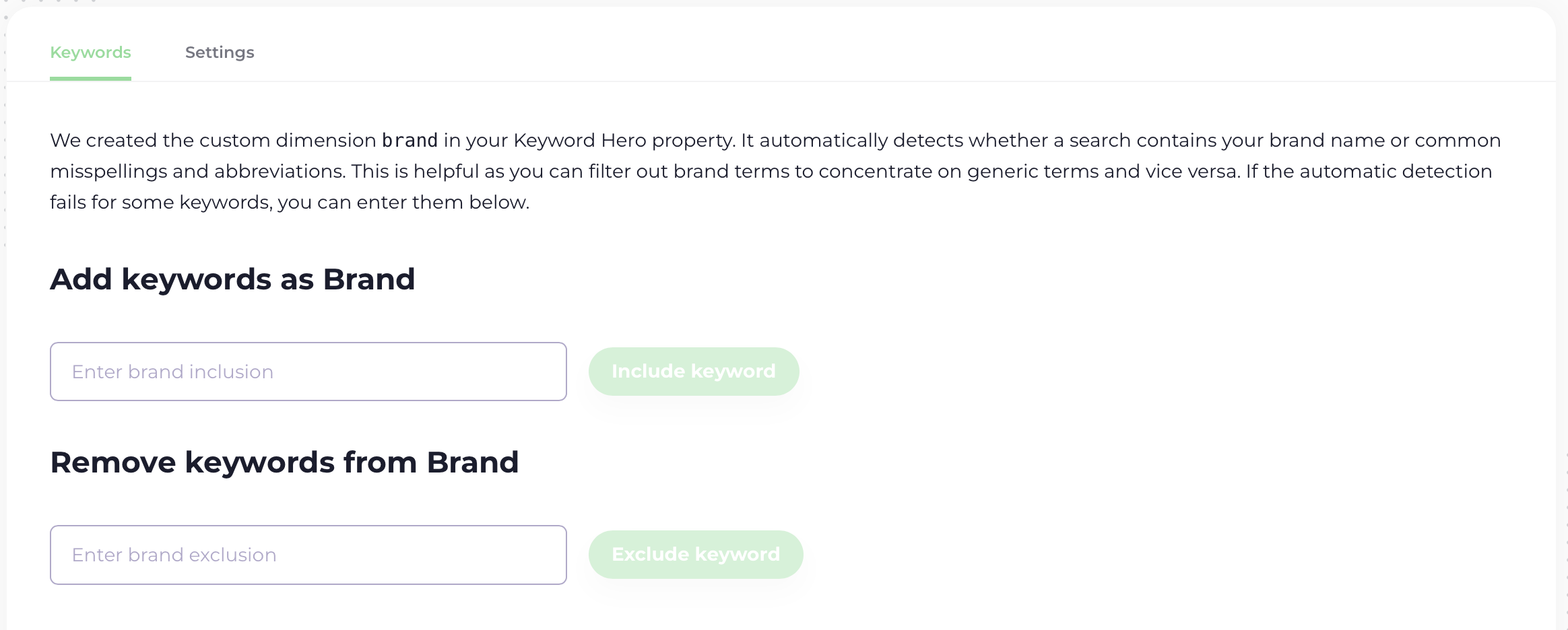
Next, simply type in the keywords you wish to add as brand keywords.
You can enter more than one at the same time by separating them with commas, semicolons or new lines.
Equally, if you wish to remove any of the brand keywords, you can simply enter them in the “Remove Keywords from Brand” box below.
Note: your newly added brand keywords may not show up immediately.
The Brand Keywords report in the app
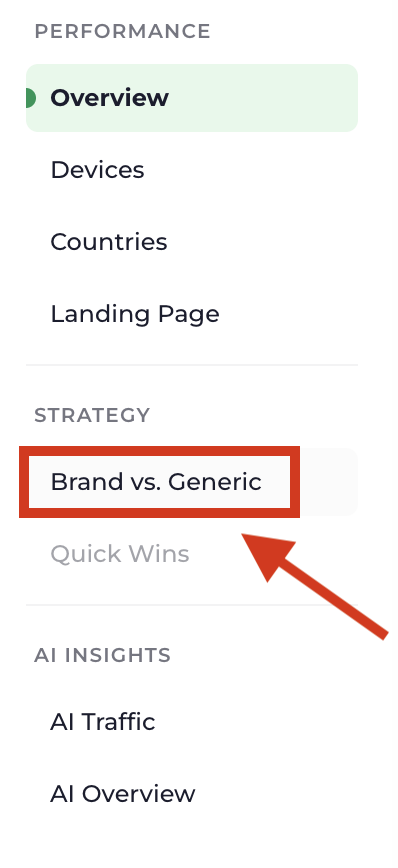
In the app on our website, we have everything you need for analysis related to brand keywords in the Brand Keywords report. You will find it in the menu on the right side, after you have clicked on your project, named “Brand vs. Generic”.
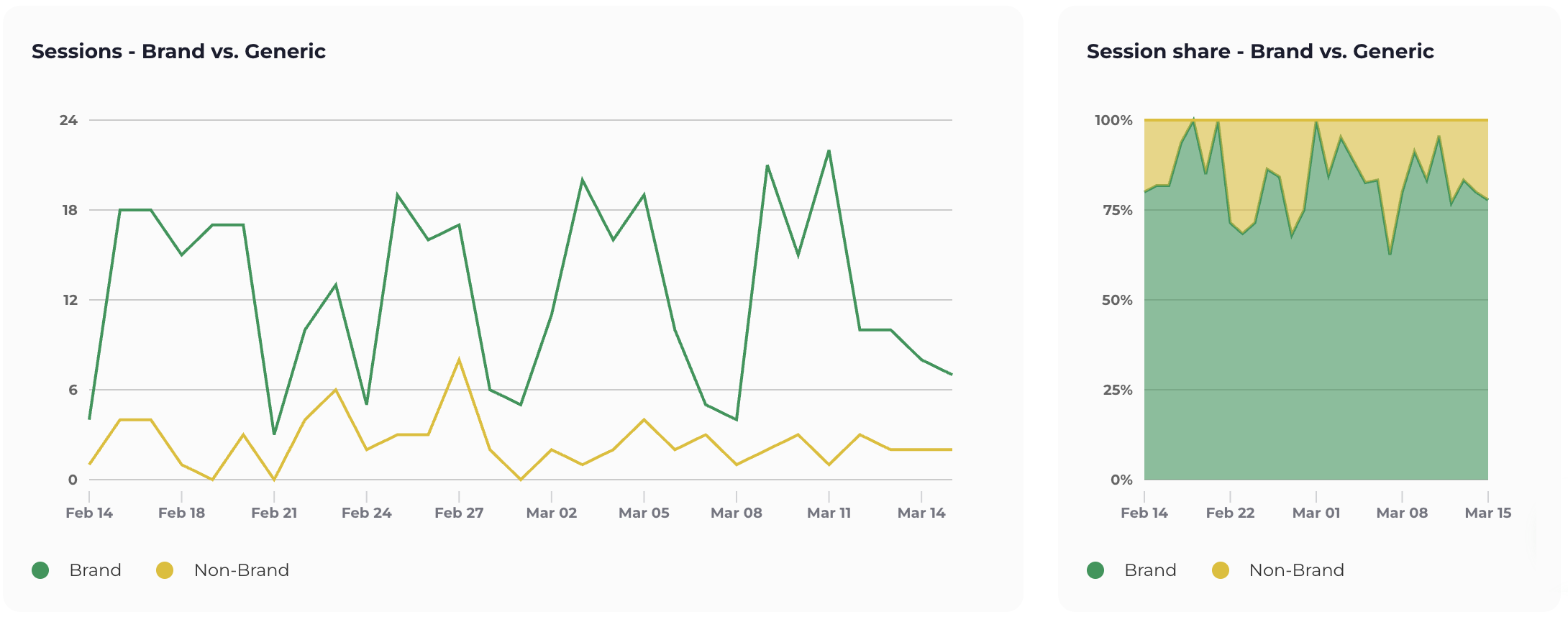
At the top of the report, there are two graphs showing you the brand related traffic, and the generic traffic. The first is showing the actual numbers, and the second is showing the relative share of brand vs non-brand traffic.
Then, you will see a table which splits your brand and non-brand traffic, where you can compare relevant metrics, such average position, bounce rate and conversions.

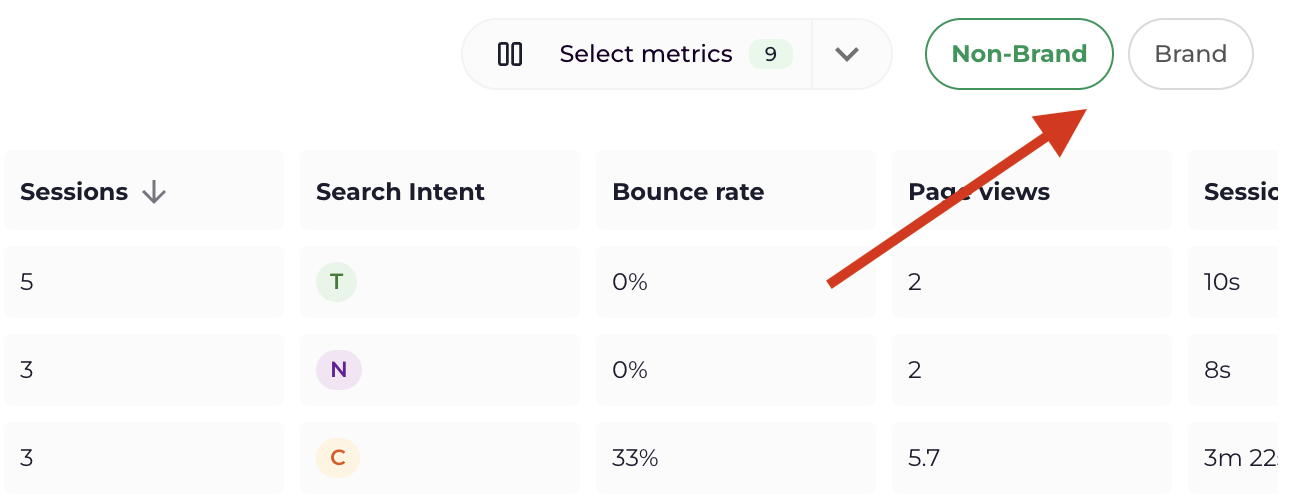
Further below, there’s a table that includes all keywords. Use the toggle on the top right to switch between brand and non-brand traffic.