
With the help of our MCP server, you can fire all your favorite prompts with questions about your keywords, SERP positions, and landing pages directly to your AI model. Your LLM can look into your data and analyze it for you based on your prompts. Basically, you’re giving ChatGPT or any other model access to your data in Keyword Hero. In addition to everything your LLM already knows, it can now tell you more about your website, keywords, and SEO!
Which LLMs can I use?
Any LLM or AI model can be used, whether it’s ChatGPT, Claude, Gemini, DeepSeek, Grok, or any other model, as long as it can be connected to a software program that functions as a client. It is important to have a client, though, otherwise it won’t work.
Which clients can I use?
Again, anything can be plugged in. Some options are:
- Claude desktop (for Claude)
- Cursor (for ChatGPT, Claude, Gemini, etc.)
- VS Code (for any model)
- Codex (for ChatGPT)
Getting started
Open your LLM client, or download one if you don’t have one yet. For any client you use, we recommend downloading it directly from the official website instead of using an app store or similar platform.
You can now connect your LLM. For some clients, you’ll need an account for the software, while for others, you’ll need an account for the LLM.
Establishing the connection
Go to your account on the Keyword Hero website. On the dashboard, click on the gear icon next to your project:

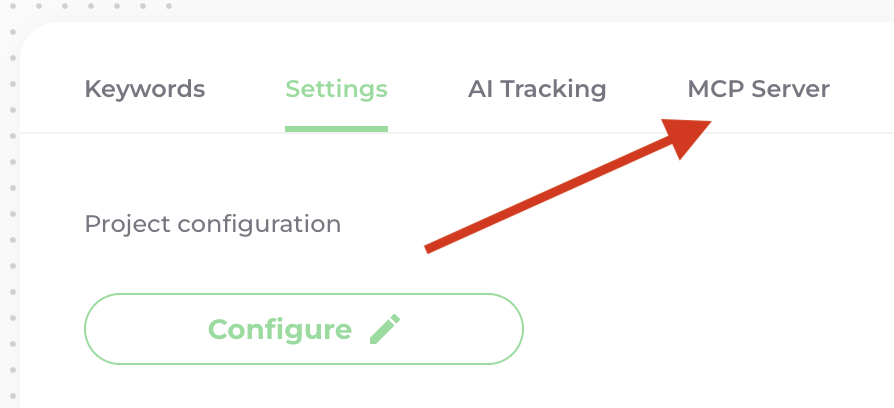
Then, go to the tab for “MCP Server”:
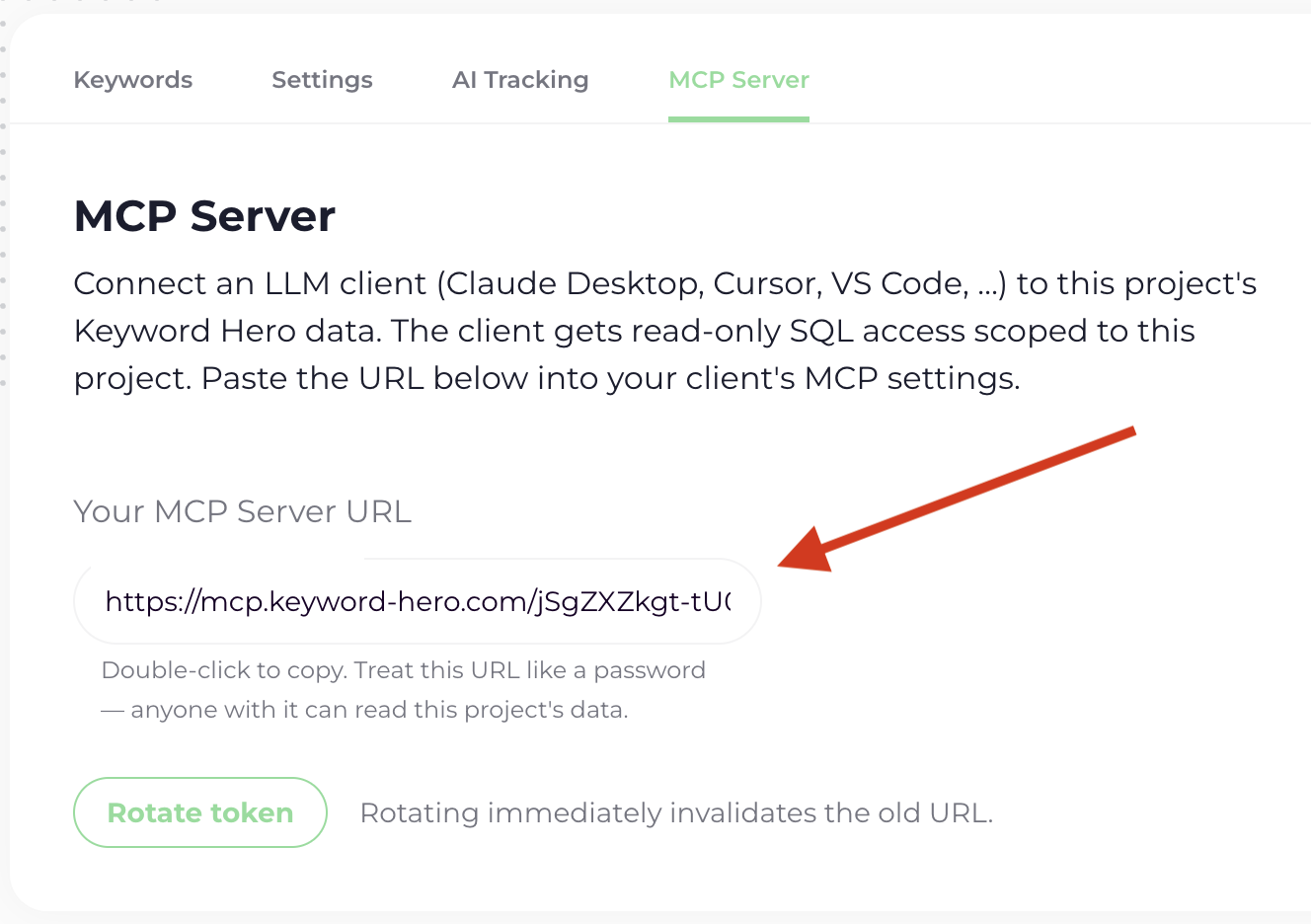
Copy the URL by double clicking it:
Head back to your LLM client and insert the URL there. It can usually be found under Settings, then MCP Servers, Extensions or Connectors. If none of these are in the menu, they may be called Preferences or Features.
Ready to go!
With the MCP server connected, you can now communicate with your AI model while it knows the ins and out of your keyword enriched session data.