
Once you have Keyword Hero up and running, and you are working with colleagues or a client, it can be very useful to be able to share data insights. It would be the absolute easiest to just add team members or clients to your Keyword Hero account. For practical reasons, your Keyword Hero account is connected one on one to the Google Analytics account chosen in the setup flow. But this can become a problem, once people you are working with also need access.
Once you have Keyword Hero up and running and you work with colleagues or a client, it can be very useful to share data insights. The easiest option would be to simply add team members or clients to your Keyword Hero account. However, for practical reasons, each Keyword Hero account is linked one-to-one with a single Google Analytics account selected during the setup process. This can become an issue when others you work with also need access.
Company-wide Google account
The first solution is a company-wide Google account. Sharing the credentials of your personal Google account not only grants access to Google Analytics, but also to your e-mail, Google Drive and documents in Google Sheets. That’s far from ideal. In this case, you can choose to create a new Google account that can be shared among colleagues or with a single client.
This will give you:
- Ability to share data through the Keyword Hero dashboard in our application
- Ability to share data through KH property in Google Analytics and Looker Studio
The disadvantage is that you’ll have an extra account, that’s possibly only being used for Keyword Hero.
How to do this: Create a new Google account, or move your existing account. Contact support for assistance.
Creating a report template in Google Analytics
There is a more robust solution to this case, which is, to create a report template within Google Analytics.
This will give you:
- No need for separate Google accounts
- Ability to share data through the KH property in Google Analytics
One thing to note is that this will only work for data in Google Analytics. Data in the dashboard remains visible only in the main account. This means search intent data and historical data are not available.
How to do this: Navigate to the Keyword Hero property in Google Analytics. Start from our dashboard and click the three buttons in the top-right corner, and choose “View in Google Analytics” or click the “View in Google Analytics” button in the bottom-left corner.
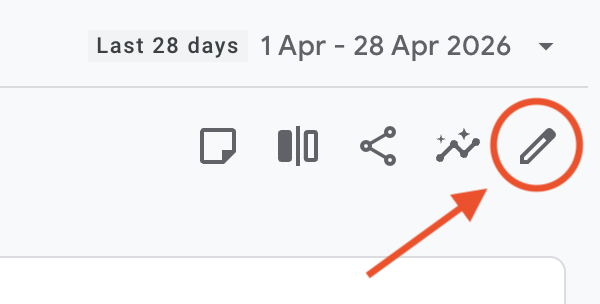
Click the pencil icon labeled Customize Report, in the top-right corner.
Then, click Save in the top-right corner and select Save as New Report. Enter a name, and click Save.
To begin configuring the report, click Metrics in the menu on the right. Remove the Conversions event metrics by clicking on the “x” right next to it. Then choose Add Metric and add conversions with a lower case c here (under custom metrics). Then hit Apply and Save, and just use the Back button to return.
By default, your own key events should be added to the report as well. For instance, if you are working with “demo_booked” and “paper_download”, you should see conversions_demo_booked and conversions_form_submission (and revenue_paper_download for example).
If the key events are not showing up for any reason, add them manually:
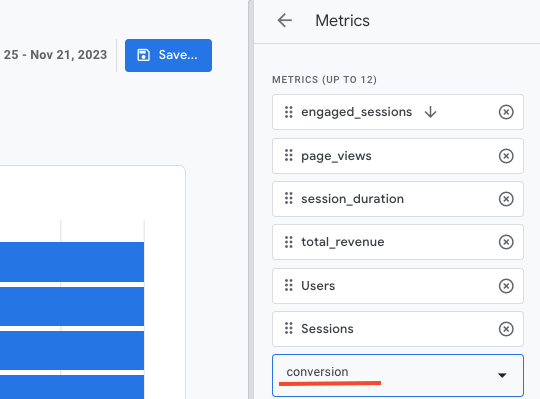
Now your Keyword Hero report is available in the library. Anyone with access to the Keyword Hero property in Google Analytics will be able to work with the data.
We also have a full documentation page on creating a report template, with each step explained in detail here.